

FOR REFERRERS
Upcoming security upgrade to your IntelePACS access
Multi-Factor Authentication (MFA) will soon be mandatory
We're introducing Multi-Factor Authentication (MFA) as a mandatory security requirement for all InteleViewer and InteleConnect logins. This page has everything you need to understand what's changing, when, and how to get set up.
What's changing and when?
From Tuesday 1 September 2026, multi-factor authentication will be required for all users accessing InteleViewer or InteleConnect. You don't need to do anything before that date - but we encourage you to set up early if you can.
1 July 2026 – Opt-in period opens
Contact our team and we'll activate MFA on your account so you can get set up at a time that suits you.
1 September 2026 – MFA becomes mandatory
MFA is enabled on all accounts. You'll be prompted to complete setup when you next log in.
Why we're doing this
This change is being introduced to meet increasing expectations from the New Zealand Privacy Act and the health sector for stronger authentication controls in systems that hold sensitive patient information.
MFA protects your patients' imaging data even if a password is ever compromised - something that has become a growing risk across the health sector in New Zealand and internationally. It is now the baseline security standard for systems like IntelePACS.
What is MFA?
MFA (Multi-Factor Authentication) adds a second verification step to your login. In addition to your username and password, you enter a 6-digit code from a free authenticator app on your phone. The code changes every 30 seconds, so it can't be reused or stolen.
Once you've entered your code, your session stays active for 24 hours on the same device - so you won't be prompted again until the next day.
Want to set-up MFA early?
Contact us and we'll activate your account and walk you through it – it takes just a few minutes.
Important: shared logins
MFA can only be linked to one person's device at a time. Shared accounts are also not permitted under our Terms & Conditions - we are required to maintain a clear audit trail of who has accessed a patient's record.
If anyone in your practice currently shares an IntelePACS login, each person will need their own individual account before 1 September.
Before you start
Make sure you have the following before beginning setup:
A smartphone or tablet
An authenticator app installed (available for free from the App Store or Google Play)
Your IntelePACS account activated for MFA - contact us first if you want to set up before 1 September
PLEASE NOTE: Our company shares PACS infrastructure with our affiliated radiology organisations. Accessing our IntelePACS system gives you access to images from Reform Radiology, Allevia Radiology, MSK Radiology, North MRI, and Affinity Medical Imaging.
Your guide to setting up MFA
1. Install your authenticator app
Open the App Store (iPhone/iPad) or Google Play Store (Android) and search for your preferred authenticator app. Download and open it. If you already have one installed, move to step 2.
2. Log in to IntelePACS as usual
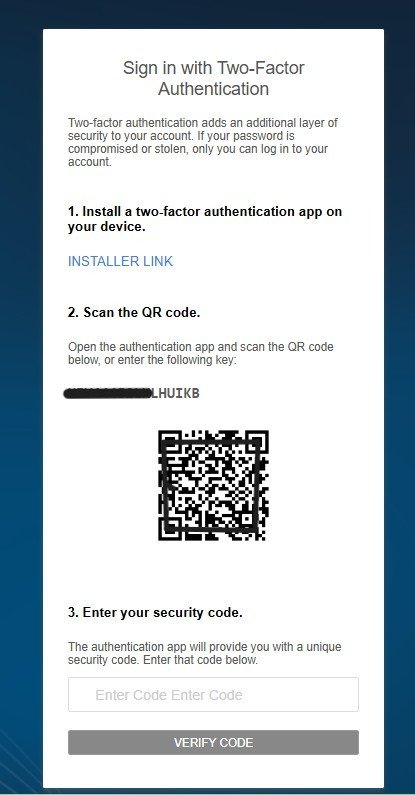
Open InteleViewer or InteleConnect and log in with your username and password. When MFA has been enabled on your account, IntelePACS will display a pop-up window with a QR code.
3. Add a new account in your authenticator app
In your authenticator app, choose to add a new account - look for Add Account or the + icon. Then scan the QR code displayed on your IntelePACS screen.
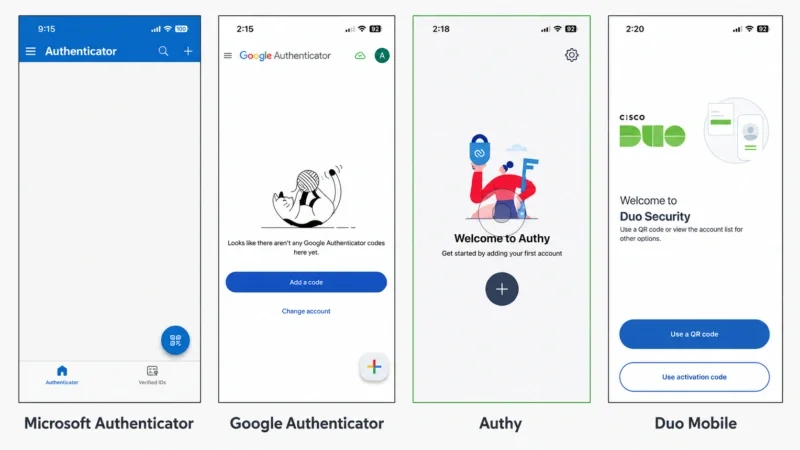
PLEASE NOTE: The Authenticator account name will be [your username] @AlleviaRadiology. You can change the account name to Reform Radiology in account settings to avoid confusion.
4. Enter your 6-digit code
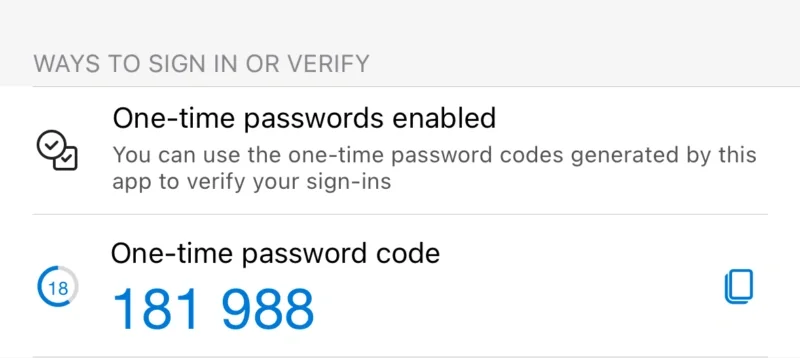
After scanning, your authenticator app will show a 6-digit code. Codes refresh every 30 seconds - a countdown timer shows how long the current code is valid. Enter this code into the IntelePACS verification screen and press Verify Code.
Future logins
Log in with your username and password as normal. When prompted (once every 24 hours per device), open your authenticator app and enter the current 6-digit code.
You won't need to scan the QR code again.
Contact us
Our team is happy to walk you through setup, help with account issues, or answer any questions about the MFA rollout.
Call us: 03 962 5703
Email us: pacs@reformradiology.co.nz
Check your contact details
To make sure you receive further updates and support materials, please log in to IntelePACS and check that your email address and phone number are up to date in your profile settings.
FAQ
-
MFA (Multi-Factor Authentication) is a second layer of security for user accounts.
It adds an additional verification step at log in. In addition to your username and password, you'll be required to enter a 6-digit code generated by an authenticator app on your phone.
This is being introduced to protect patient imaging data and meet healthcare cybersecurity standards. Most major radiology providers are moving to this requirement.
-
Around 2 minutes. The user downloads a free authenticator app onto their smartphone or device, scans a QR code when they log in to InteleViewer / InteleConnect, and enters a 6-digit code.ption text goes here
-
No. Once your MFA code has been entered, your session on a given device and location stays active for 24 hours.
You'll only be prompted again the next day, or if you switch to a different computer or location.
-
Microsoft Authenticator, Google Authenticator, Authy, and Duo Mobile are all supported. All are free to download from the App Store or Google Play.
-
No. The MFA requirement is specific to the Allevia Radiology, MSK, North MRI, Affinity, and Reform InteleViewer and InteleConnect systems. It does not affect any other platforms, PMS systems, or login credentials from other providers.
-
The authenticator app generates a secure unique code every 30 seconds. This makes your login more secure as this constant regeneration means it can't be reused or stolen.
The app also doesn’t need the internet to generate a code.
Note: Authenticator apps don't track your location, access your personal data or activity, or send any information to us.
-
MFA can only be linked to one person’s device and shared accounts pose a security risk.
If two or more people share a login, they will each need their own individual accounts before the cutover date.
If you share a login, please apply for an additional account.
-
MFA requires a smartphone or smart device to install an authenticator app. If you run into issues please contact us and we will be happy to help.
-
Please contact us and we will be happy to help. Call us: 03 962 5703 or email us: pacs@reformradiology.co.nz